

Overview of Updates – June 2019
Overview of Updates
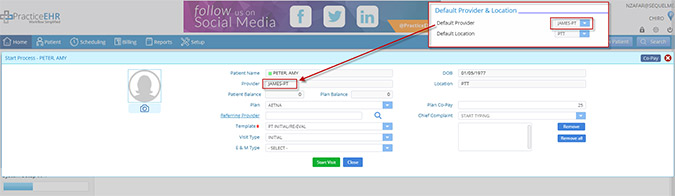
- 1. Clinical – Default provider selected for Chiro entity.
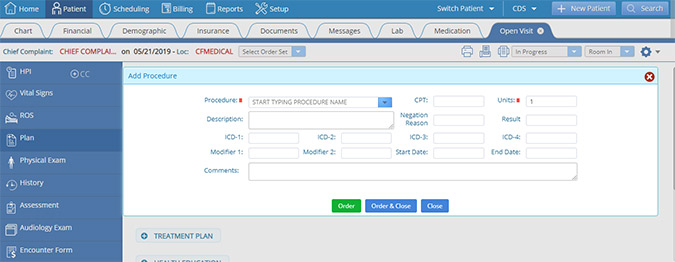
- 2. Clinical – Add multiple procedures quickly.
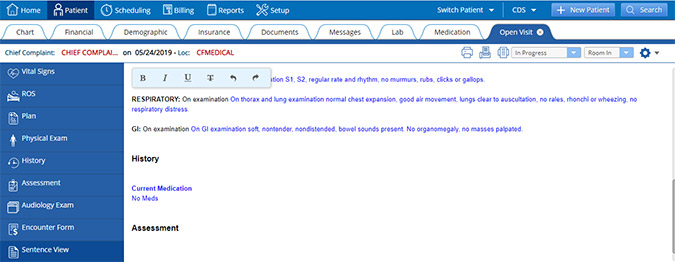
- 3. Clinical – New “No Meds” check box in medication tab.
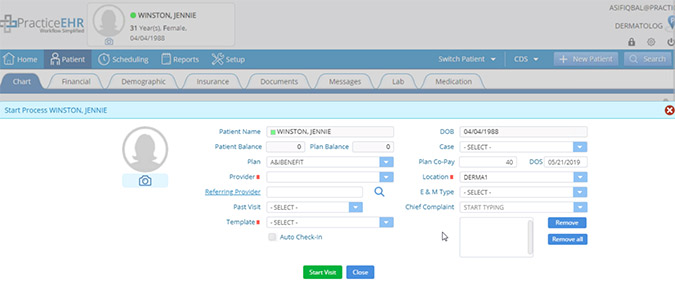
- 4. Clinical – New search functionality for location drop down and referring provider list.
- 5. Clinical – Bill type for Quest labs now available.
- 6. Clinical – New “View Detail” button available for labs.
- 7. Front Desk – Reference patient balance from the scheduler.
- 8. Front Desk – View patient eligibility at a glance.
- 9. Front Desk – New “Patient Not Eligible Only” checkbox.
- 10. Front Desk – New Plan/Copay column now available in “Today’s Appointments” bucket.
- 11. General – Quickly reference patient forms.
- 12. General – Import/export multiple attachments using the control key.
- 13. General – Message details will now include patient name.
- 14. General – A new window or tab automatically generates when you switch entities.
- 15. General – Add attachments to support tickets.
- 16. Billing – Check detail will be opened in new tab instead of popup window.
- 17. Billing – New text changes.
- 18. Billing – Allow overpayment for patient balance.
- 19. Billing – When electing EOB, the claim status or EOB status will flash when available.
- 20. Billing – Pending ERA posting tab will not refresh when switching between tabs.
- 21. Billing – Billing will remain in same position if you switch tabs into a different part of the EHR.
- 22. Billing – Patient instant eligibility added under insurance to check insurances that aren’t in their specific plan.
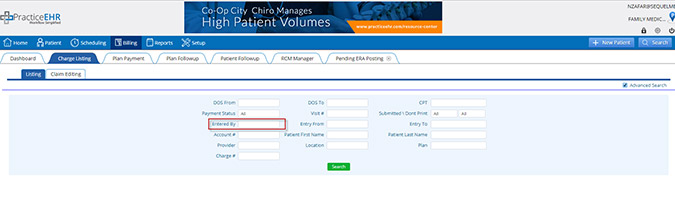
- 23. Billing – An “Entered By” field has been added for charge listing advance search.
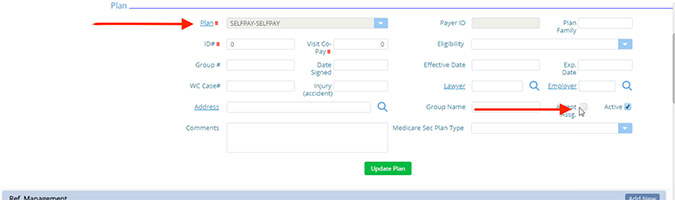
- 24. Billing – Plan ID will be disabled when creating a self-pay plan.
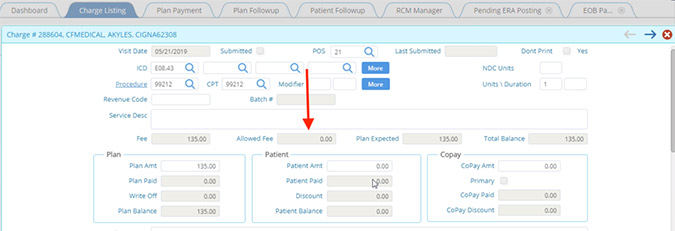
- 25. Billing – An “Allowed Fee” field has been added under charge detail.
- 26. Billing – Plans will appear in red if eligibility status is inactive or rejected.
- 27. Billing – Under the set-up tab, a hyperlink has been added to the procedure column.
- 28. Billing – A “Claim Status” button has been added under follow up detail.
- 29. Billing – ERA Charge payment improvements are now available.
1. Clinical
In the Chiro entity, a default provider will be selected when there is an appointment under a resource.
2. Clinical
Add multiple procedures quickly. When you select one procedure under plan and click order, the fields will reset so that you can easily add in another procedure. Go to: Visit > Plan > Procedure > Select any procedure from drop down and click on order. All fields will reset.
3. Clinical
New “No Meds” check box in medication tab. There is a check box in the medication tab for no meds and when clicked, this reflects on the note.
4. Clinical
New search functionality for location drop down and referring provider list. Find a location or referring provider quickly by free typing in the field. Associated names will appear.
5. Clinical
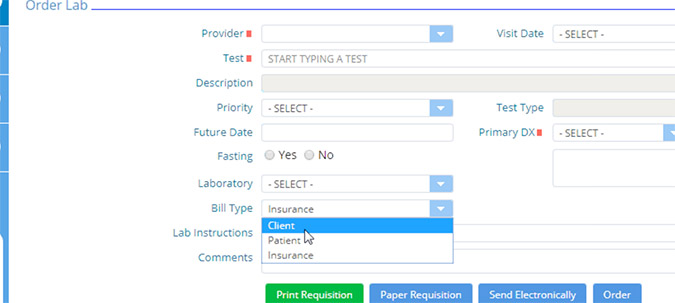
Bill type for Quest labs is now available. When a plan is added in the insurance tab, the insurance option will be available.
6. Clinical
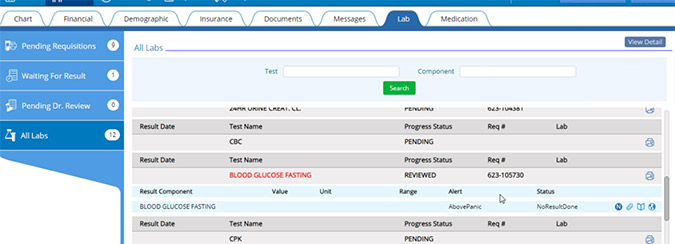
New “View Detail” button available for labs. Click “View Detail” button to view more information on all labs.
7. Front Desk
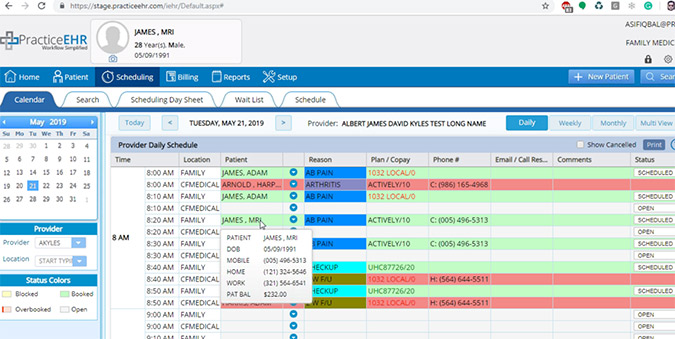
Reference patient balance from the scheduler. The patient balance will now display in the appointment tool tip.
8. Front Desk
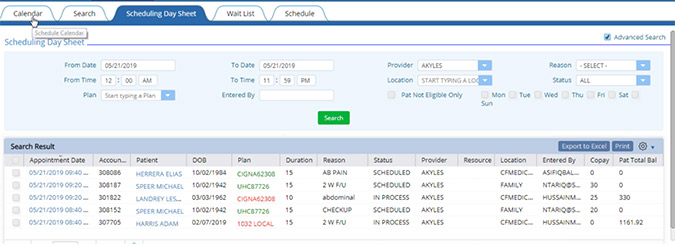
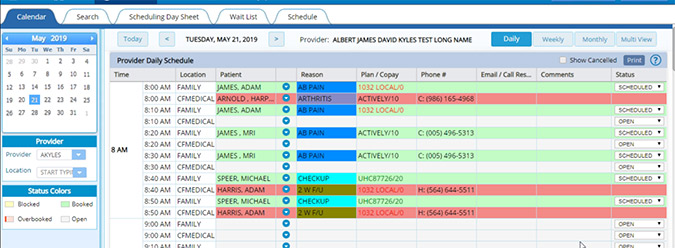
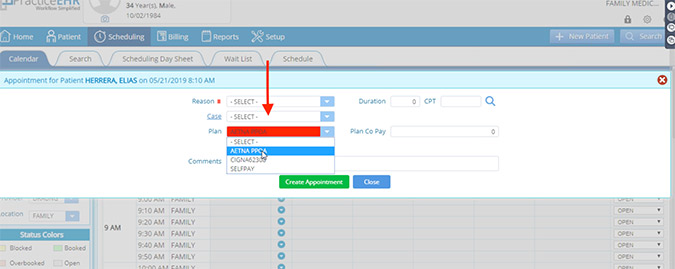
View patient eligibility at a glance. In the calendar, search, scheduling day sheet and throughout the system the plan information will be green (active), red (rejected) or black if eligibility has not been checked.
9. Front Desk
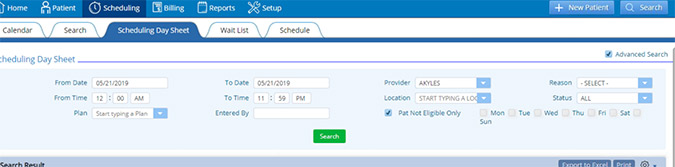
New “Patient Not Eligible Only” checkbox. Added “Patient Not Eligible Only” checkbox under search criteria of scheduling day sheet. This will appear for all appointments where eligibility response is rejected or in active.
10. Front Desk
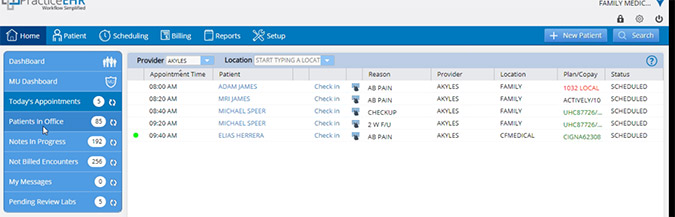
New Plan/Copay column now available in “Today’s Appointments” bucket. In the Plan and Copay section, you will need to hover over the area to see the whole plan and copay amount. This color reflects eligibility status.
11. General
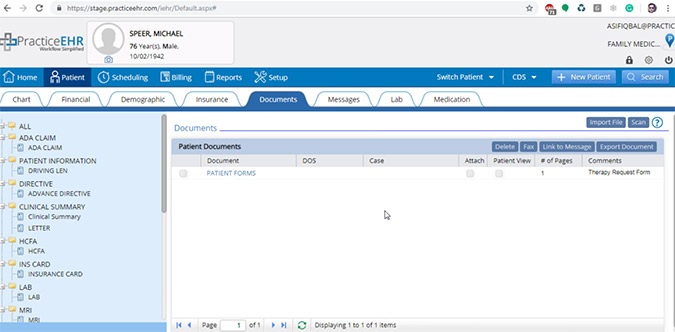
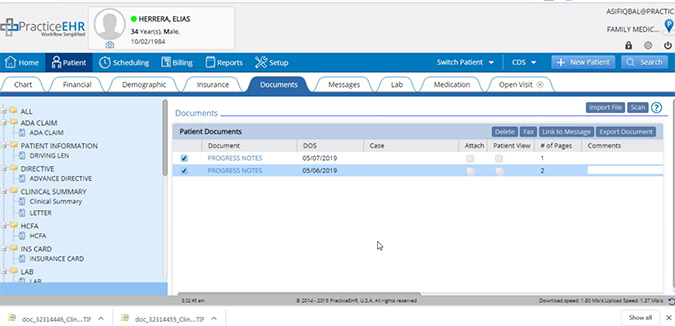
Quickly reference patient forms. The name of the patient form will show in the comments section in the document section, as seen in the screenshot.
12. General
Import/export multiple attachments using the control key. In the document sections, you can now import multiple attachments by using the control key and selecting multiple files. To export multiple files, click the check boxes, click the export button and files will be downloaded.
13. General
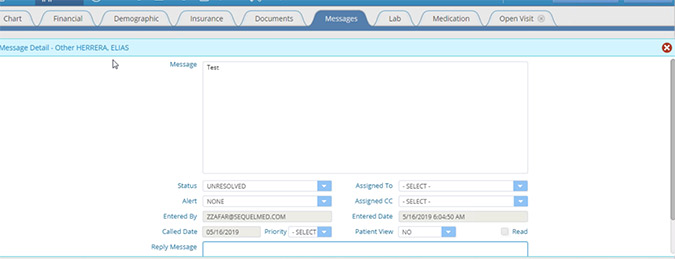
Message details will now include patient name. The patient name will be shown on message detail, including the patient last name and first name.
14. General
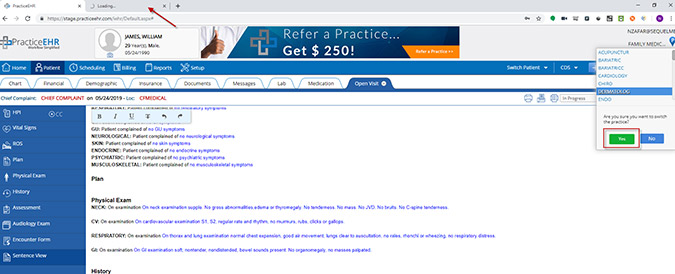
A new window or tab automatically generates when you switch entities. When you log out and log back in, the last entity used will login next.
15. General
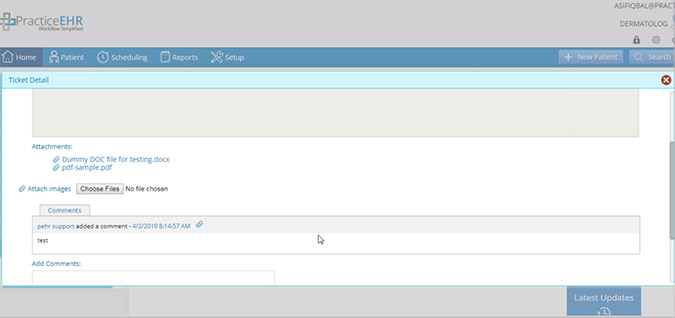
Add attachments to support tickets. In the support ticket window you will now be allowed to be attach PDF documents and Word files. The support tab will only be displayed if your account type is “LIVE”.
Billing Updates:
16. Billing
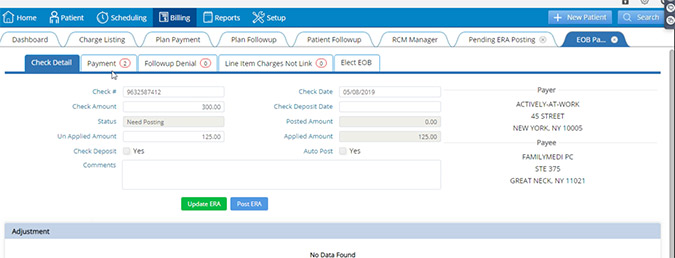
Check detail will be opened in new tab instead of popup window. Go to: Billing > Pending ERA Posting > Open Check Detail.
17. Billing
New text changes within Practice EHR. The following items have been renamed in Practice EHR:
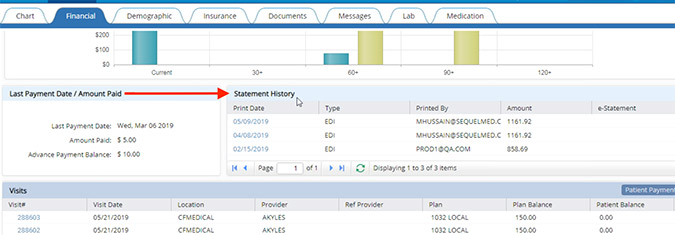
- “Statements” is now called “Statement History” in the financial tab. Go to: Financial Tab > “Previous Statement” caption changed to “Statement History”.
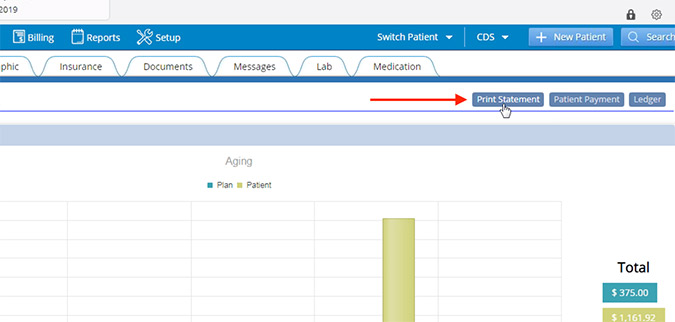
- “Patient Statement” is now called “Print Statement”. Go to: Financial Tab > “Patient Statement” caption changed to “Print Statement”. It will work like printing paper statement from billing section.
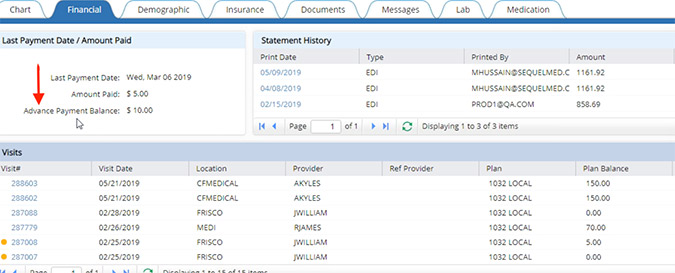
- “Total Advance Payment” is now called “Advance Payment Balance”. Go to: Financial Tab > “Total Advance Payment” caption changed to “Advance Payment Balance”.
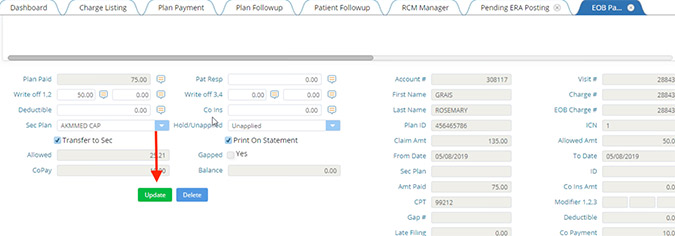
- “Apply Payment” is now called “Update.” Go to: Pending ERA Posting > EOB Payment Posting > “Apply Payment” caption changed to “Update”.
18. Billing
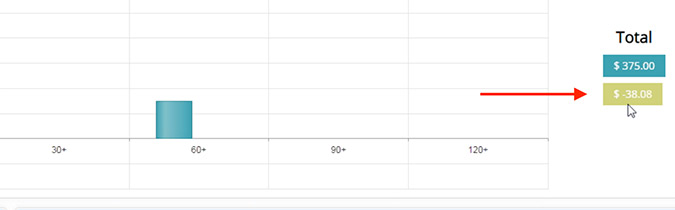
Allow overpayment for patient balance. Amount of credit balance will show in a negative status. Go to: Financial Tab > Allowed overpayment for patient.
19. Billing
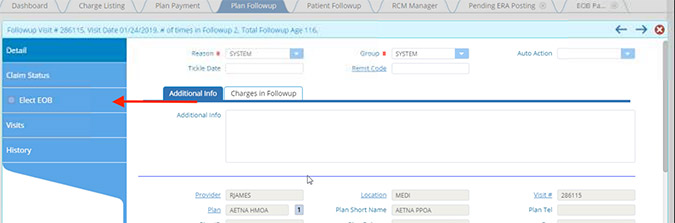
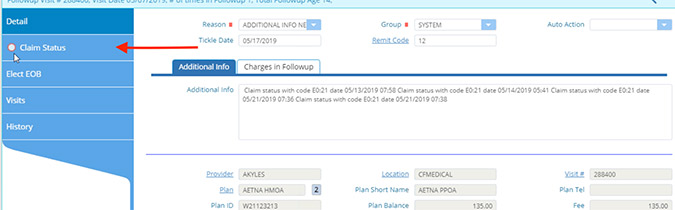
When electing EOB, the claim status or EOB status will flash when available. Go to: Plan Follow-up Detail > Elect EOB and Claim Status will be highlighted if available.
20. Billing
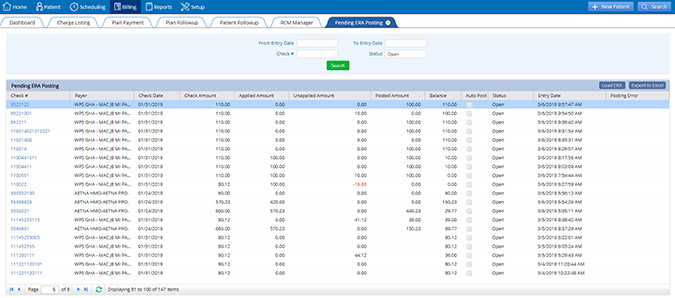
Pending ERA posting tab will not refresh when switching between tabs. When posting EOB’s your position will not change, when moving from page to page. You will come back to where you left off on each page.
21. Billing
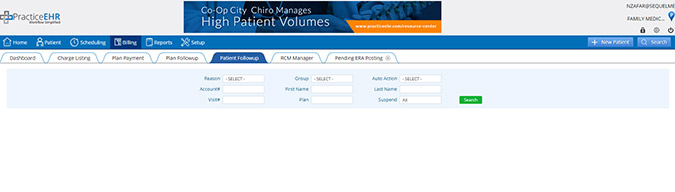
Billing will remain in same position if you switch tabs into a different part of the EHR. Detail window will remain open in billing if any patient is selected and user switch tabs.
22. Billing
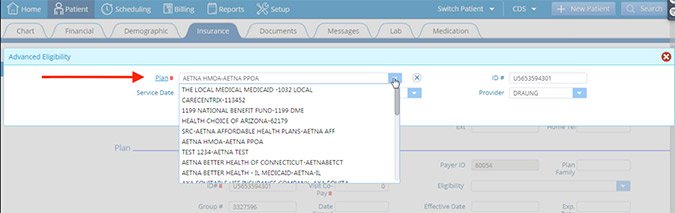
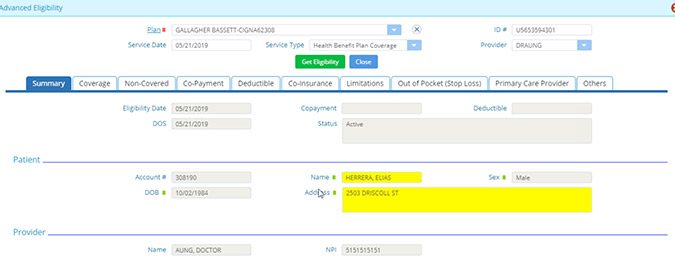
Patient instant eligibility added under insurance to check insurances that aren’t in their specific plan. The following has been updated for advanced eligibility:
- In case of rejection, due to invalid/missing subscriber/insured ID the patient eligibility will be marked as Inactive. Advanced eligibility window will only show plans with EDI setup.
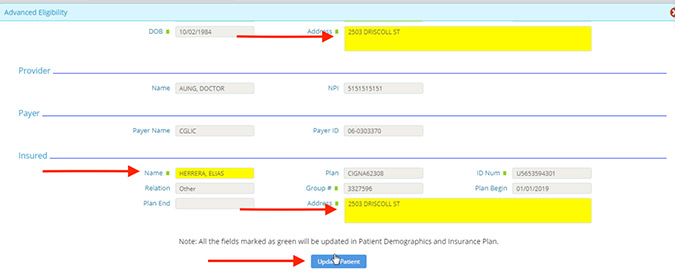
- In case of mismatched info, fields will be highlighted in yellow and user can update patient info. User can get eligibility for any plan and also create plan.
- ID Number and Group Number will be updated when clicking on the “Update” Button. If status is not active, it will not show the “Update” button.
- Added two tabs under insurance eligibility named “Eligibilities” and “Other Insurances”. The eligibility tab will only show selected plan eligibilities.
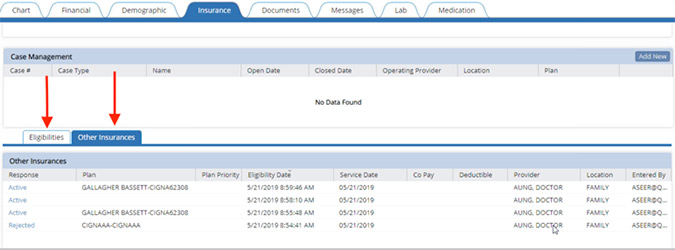
- The other insurances tab will show eligibility response for plans not selected as part of patient’s insurances. The “Try Again” button should only be visible if the status is not active.
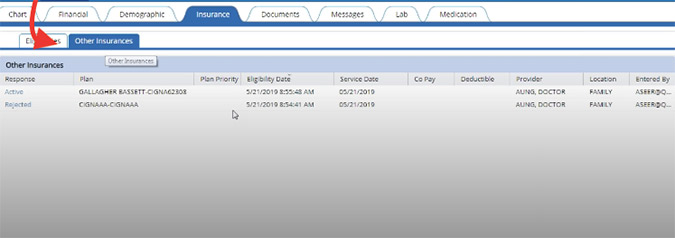
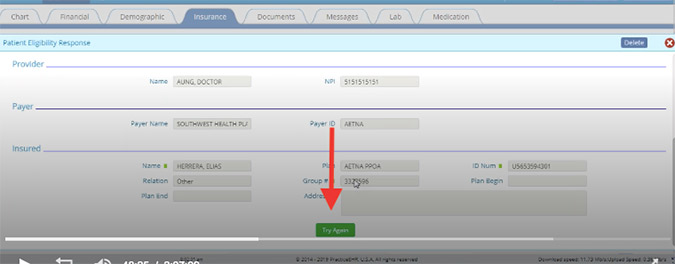
- In addition, the new inquiry button will be removed, the “Update Patient” and “Create Plan” buttons will not be shown if status is inactive and system will show green next to field titles that can be updated.
23. Billing
An “Entered By” field has been added for charge listing advance search.
24. Billing
Plan ID will be disabled when creating a self-pay plan. Self-pay plan will be system defined. Plan ID will be disabled while creating plan, in case of Self Pay plan will always bill to patient. Accept Assignment check box will be disabled.
25. Billing
An “Allowed Fee” field has been added under charge detail. It will pick value given under plan fee.
26. Billing
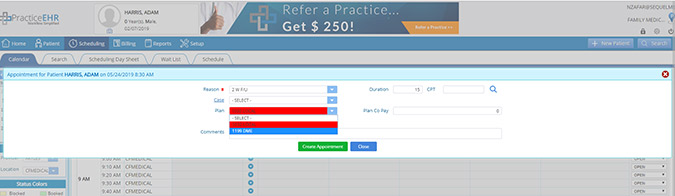
Plans will appear in red if eligibility status is inactive or rejected.
27. Billing
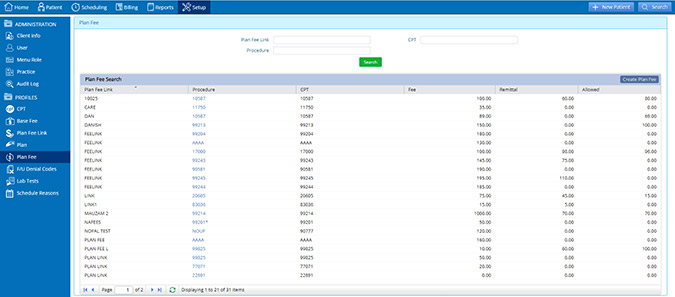
Under the set-up tab, a hyperlink has been added to the procedure column.
28. Billing
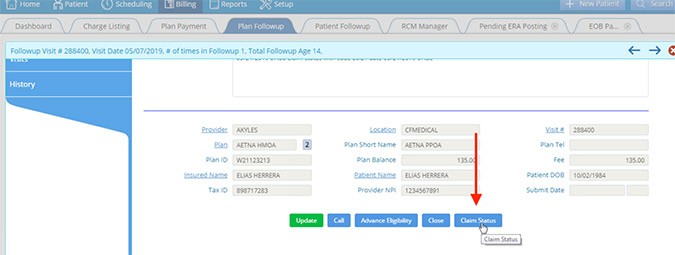
A “Claim Status” button has been added under follow up detail.
29. Billing
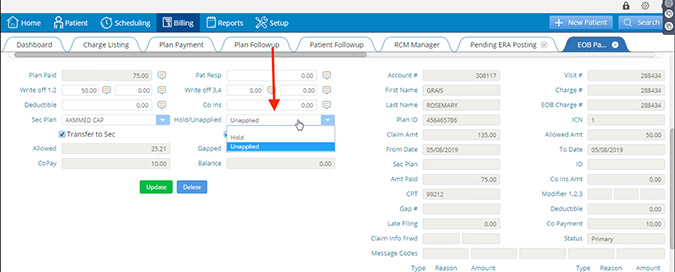
ERA Charge payment improvements now available. The following has been changed:
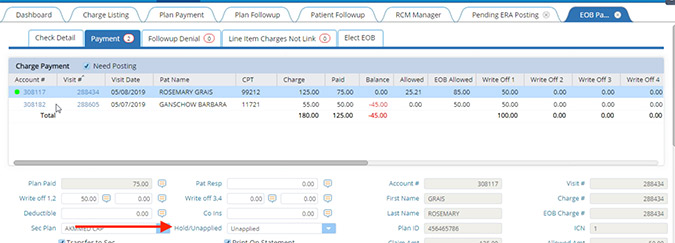
- Added “Hold/Unapplied” drop down.
- Added “Auto Post” check box.
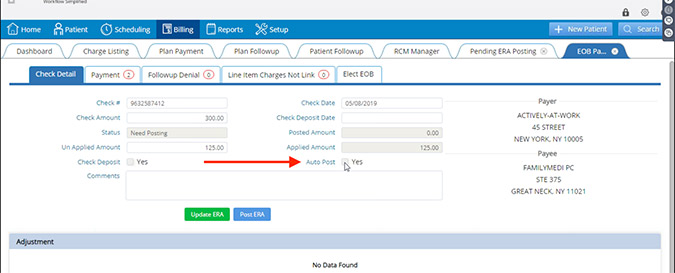
- Added “Need Posting” check box.
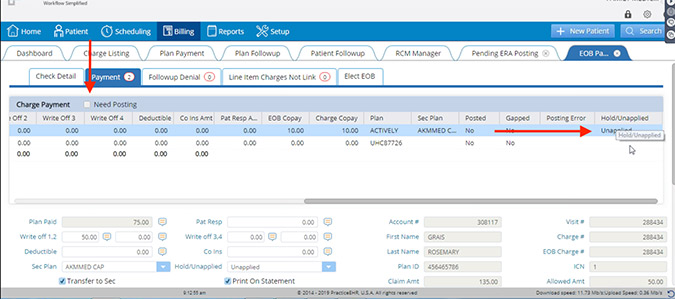
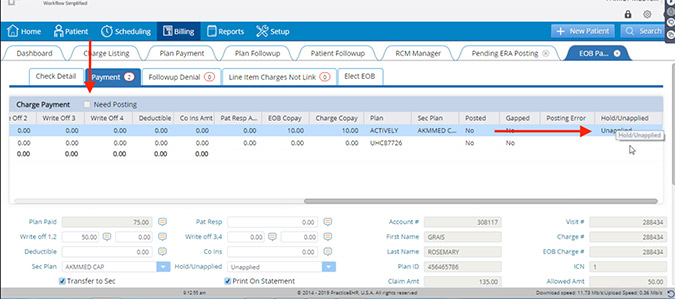
- Added “Hold/Unapplied” column in ERA grid. The hold/unapplied drop down will be disabled when payment is posted.
- After closing EOB payment posting, user will stay on the Pending ERA Posting tab instead of moving to dashboard.