
Overview of Updates – Jan 2020
Your Practice EHR account was automatically upgraded to the latest version. The following updates were released:
Overview of Updates
- 1. Front Desk – New flag added for patient status.
- 2. Front Desk – New flag added for inactive patient selection.
- 3. Front Desk – Filter records by appointment status.
- 4. Front Desk – Patient class character limit increased.
- 5. Front Desk – Patient class character limit increased.
- 6. All Users – New visit status added.
- 7. All Users – Provider schedule updated.
- 8. All Users – Medical record number changed to uppercase.
- 9. Clinical – DOS added for Chiro entity.
- 10. Billing – New EDI payer ID search.
- 11. Billing – New export to excel icon added to EDI payer search results window.
- 12. Billing – Search by referring provider using advanced search.
- 13. Billing – Charge grid search results updated.
- 14. Billing – Claim form selection update.
- 15. Billing – Import plan button removed.
- 16. Billing – Claim status button removed.
- 17. Billing – Adjust ledger option added.
- 18. Billing – From and to date fields removed.
- 19. Billing – Admission and discharge details added.
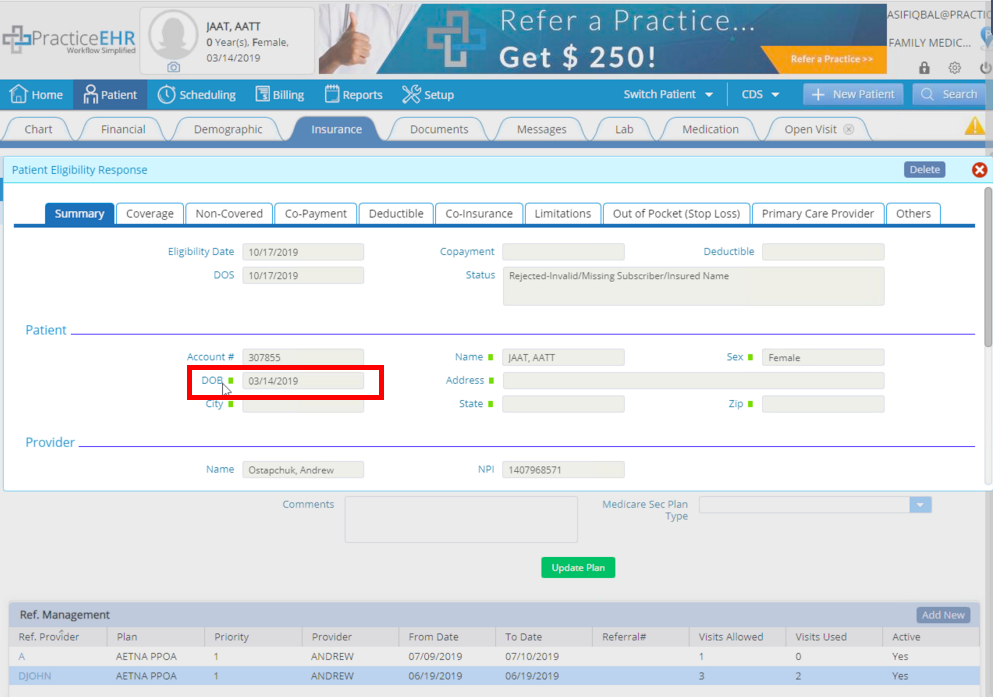
- 20. Billing – DOB field added to patient eligibility response.
1. Front Desk
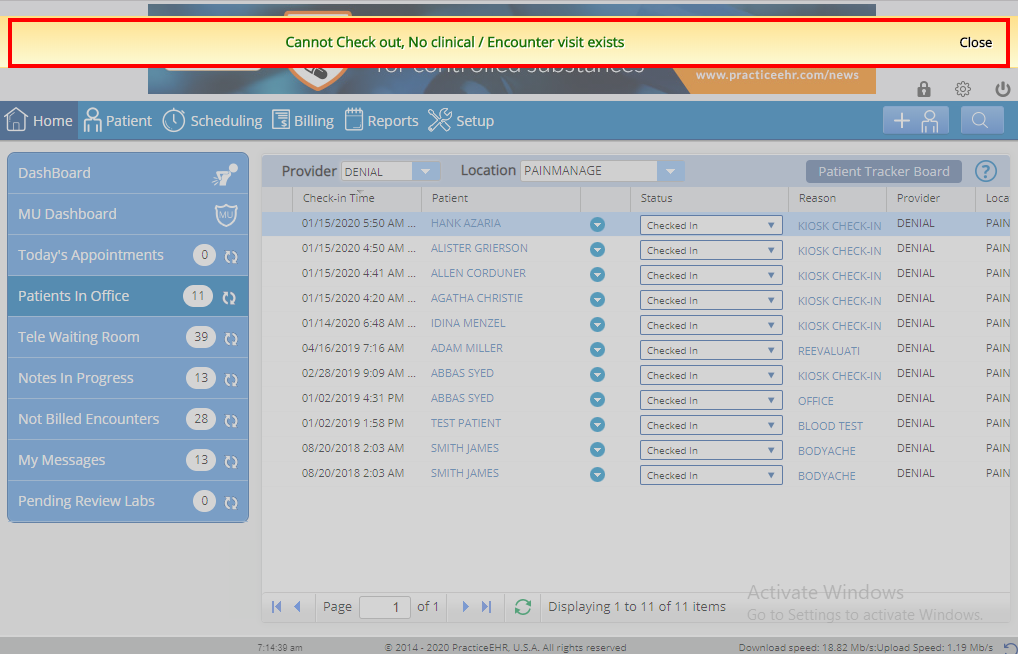
New flag added for patient status. If there is no visit created for an appointment the system will not allow you to check out a patient. The following message will appear: “Cannot Check out, No clinical/Encounter visit exists.”
2. Front Desk
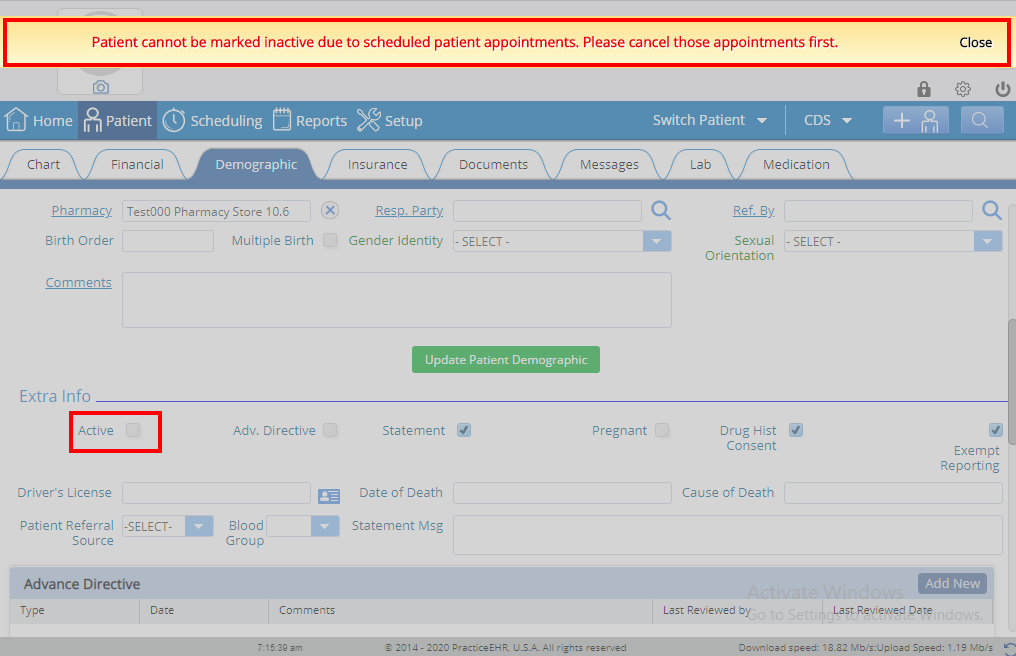
New flag added for inactive patient selection. Patients cannot be marked as “Inactive” if the patient has future appointments scheduled on the calendar. The following message will appear: “Patient cannot be marked inactive due to scheduled patient appointments. Please cancel those appointments first.”
3. Front Desk
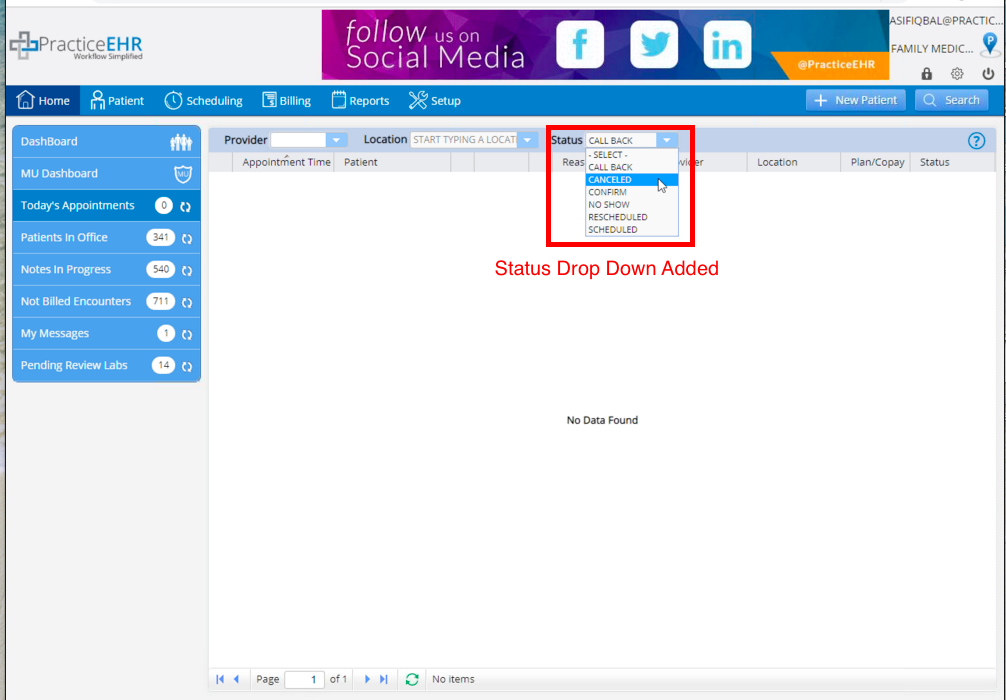
Filter records by appointment status. . A new status drop down has been added in the Today’s Appointments bucket to filter records based on appointment status. Select a status option from the dropdown and those appointments will appear in the grid. This was added so that appointments can be categorized and users can easily find specific appointment types.
4. Front Desk
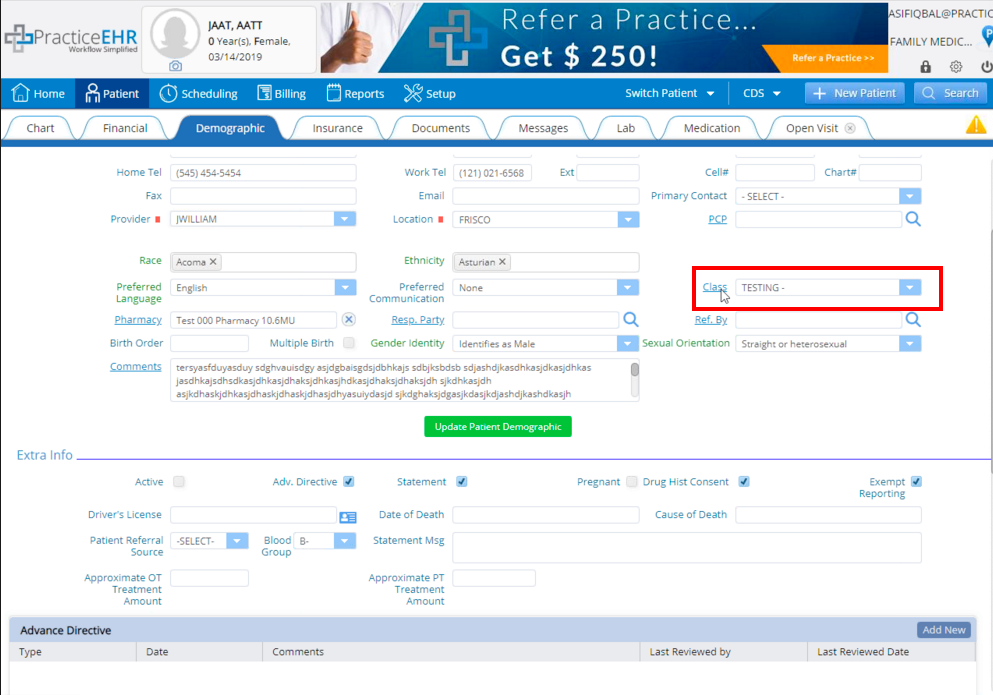
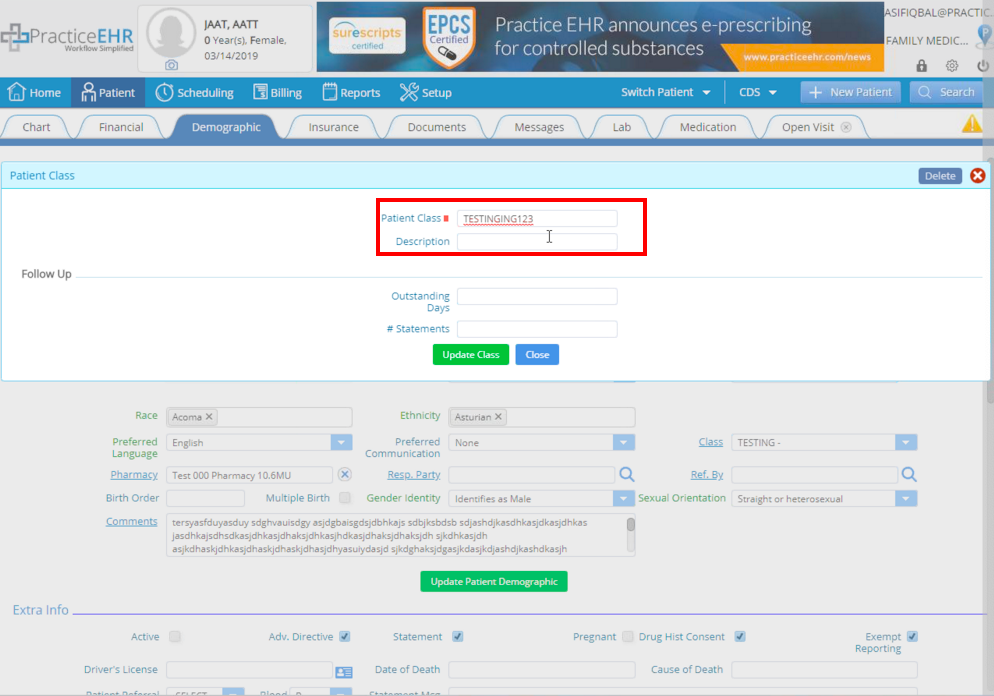
Patient class character limit increased. Under the Demographics tab, the patient class character limit has increased so that a longer name can be used when necessary.
5. Front Desk
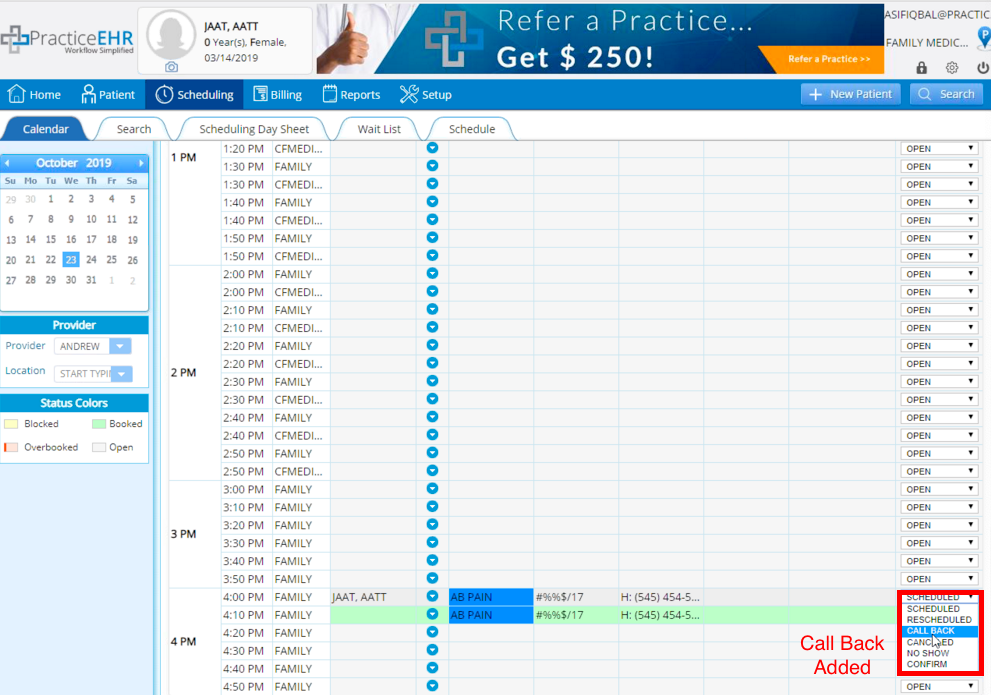
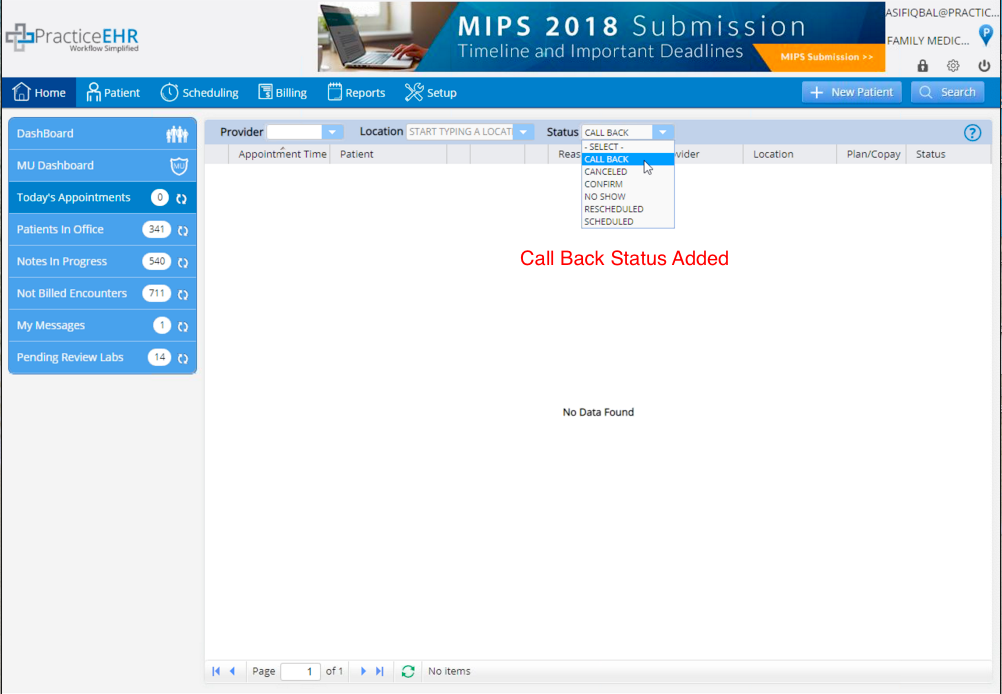
New appointment status added. “Call Back” has been added to the Scheduler as a new appointment status so that users can easily find a list of patients that need to be called back regarding their appointment. To access the list of call back patients go to Scheduling day sheet > Status drop down.
6. All Users
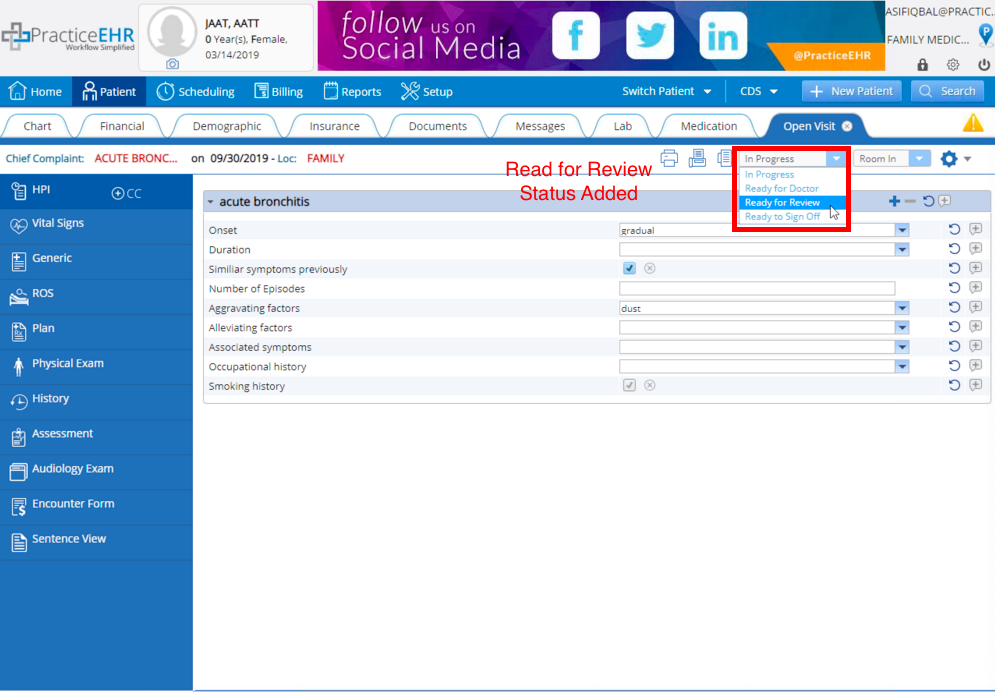
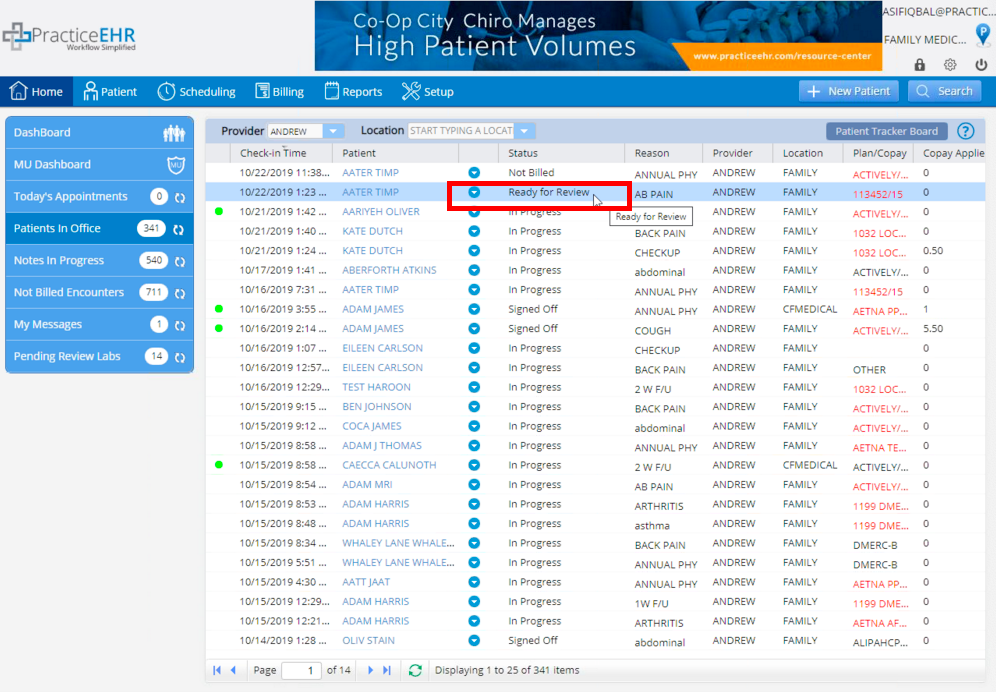
New visit status added. “Ready for Review” has been added to the visit status drop down. This status is now available so the doctor or staff can review the visit before checking out the patient, ensuring errors can be amended on time.
7. All Users
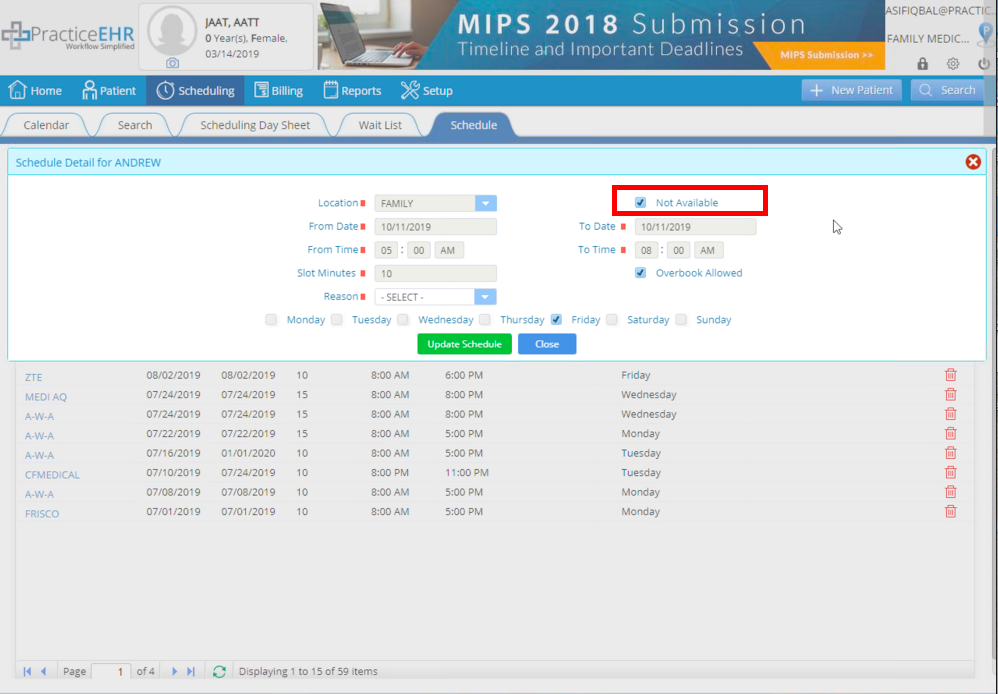
Provider schedule updated. After creating a provider schedule, you will now be able to make changes for “Overbook” and “Not Available” settings.
8. All Users
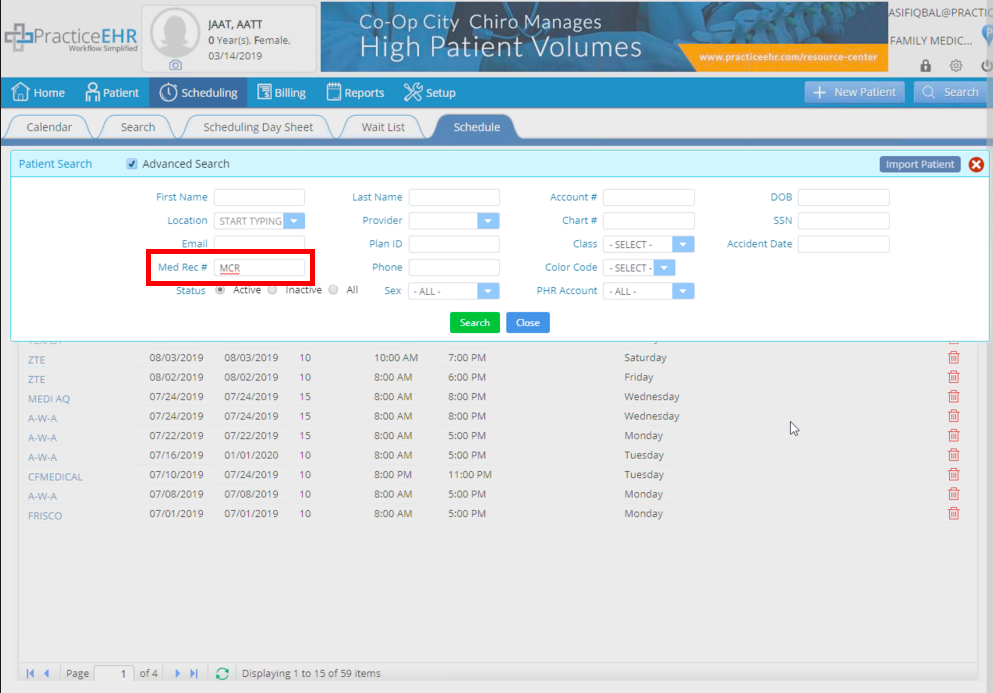
Medical record number changed to uppercase. Under the advance patient search window the medical record number will now automatically appear in upper case.
9. Clinical
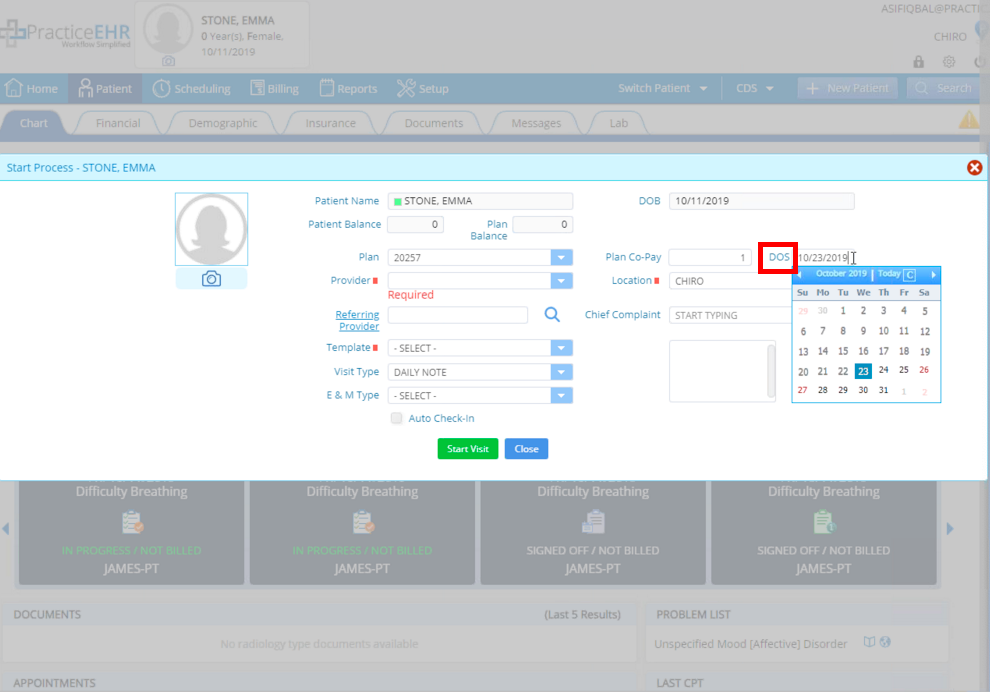
DOS added for Chiro entity. The date of service (DOS) field has been added to the start process window for Chiro/PT.
10. Billing
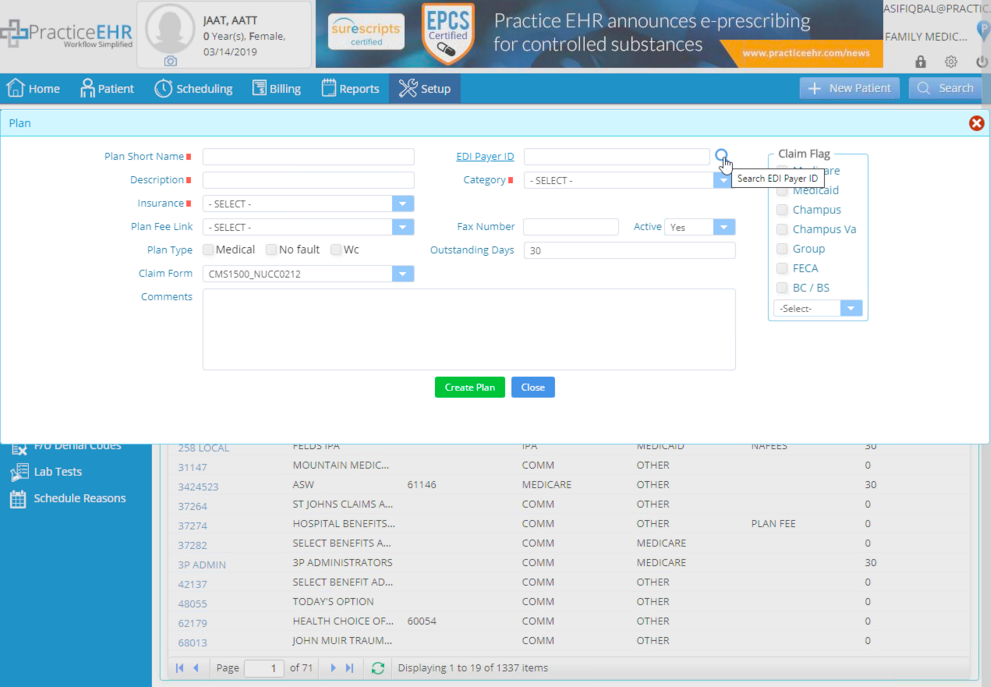
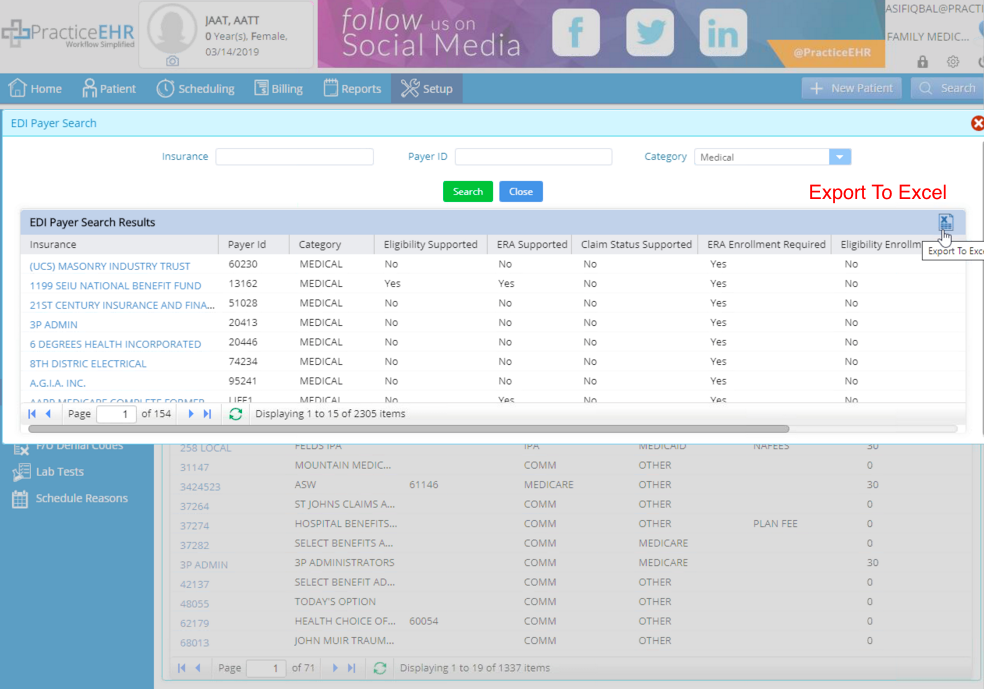
New EDI payer ID search. Under insurance plan details, an electronic payer search window has been added.
11. Billing
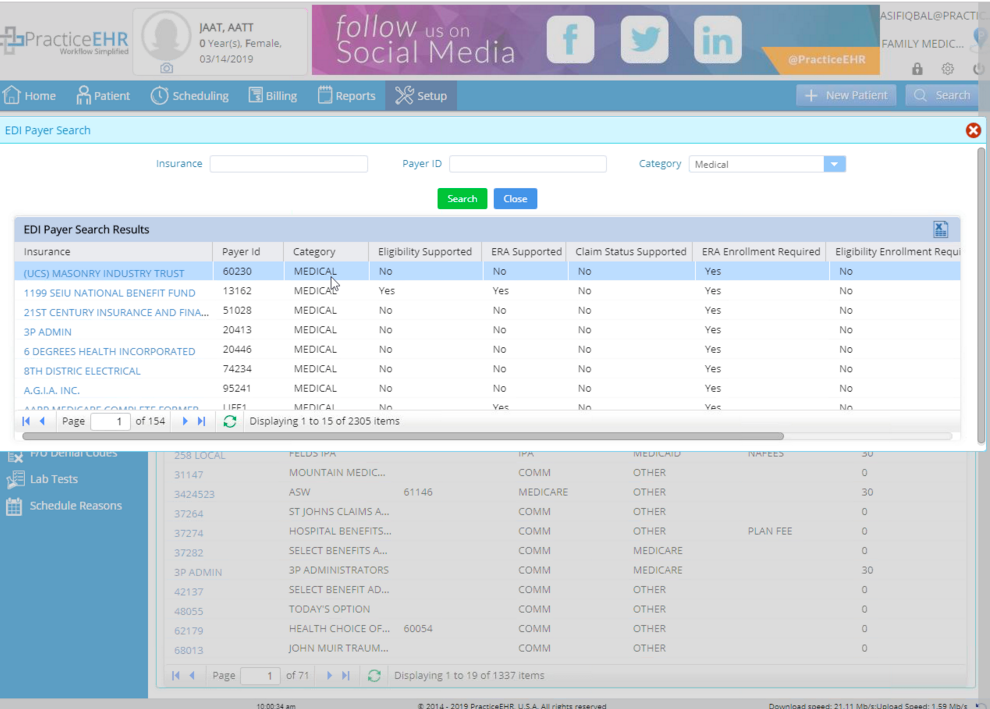
New export to excel icon added to EDI payer search results window. An export to excel icon has been added so that users can export EDI payer search results.
12. Billing
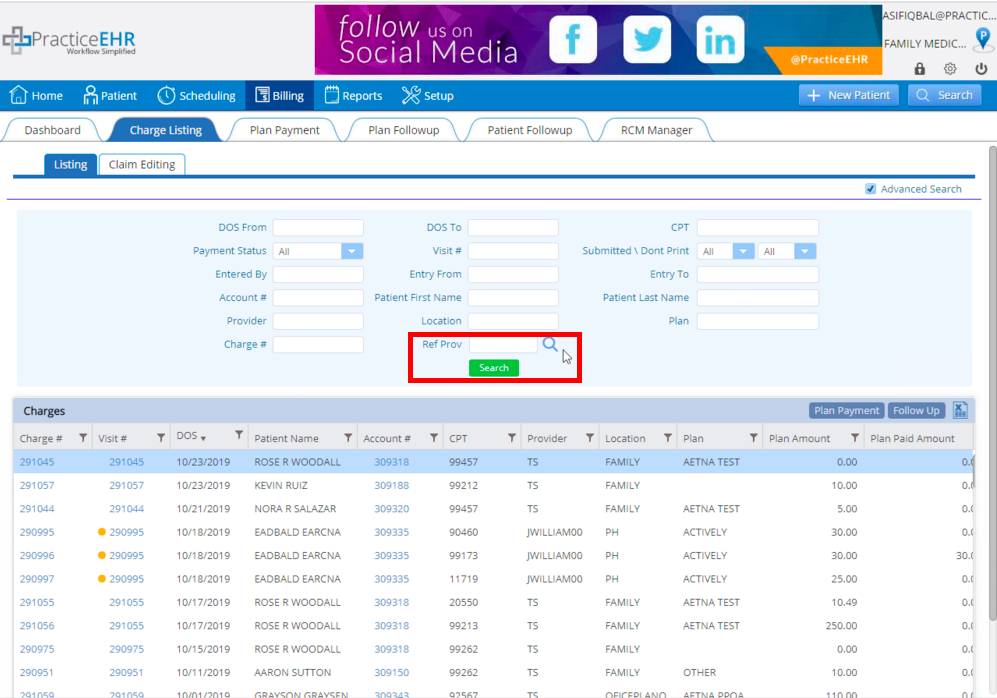
Search by referring provider using advanced search. Under the Charge Listing tab, a referring provider field has been added to the listing search.
13. Billing
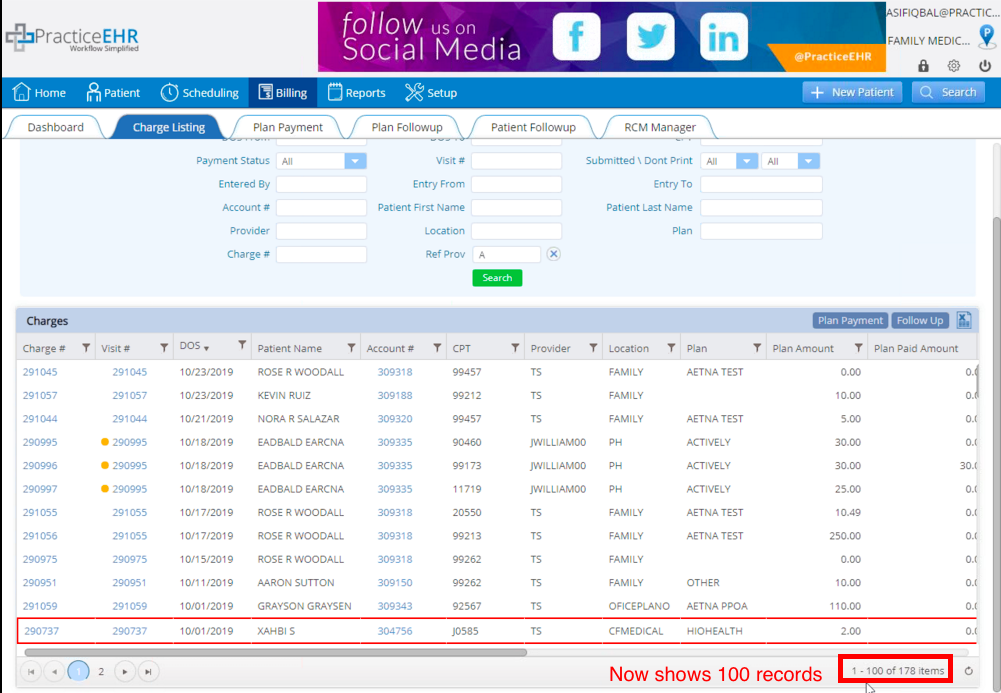
Charge grid search results updated. Under the Charge Listing tab, the charges grid will now show 100 records per page.
14. Billing
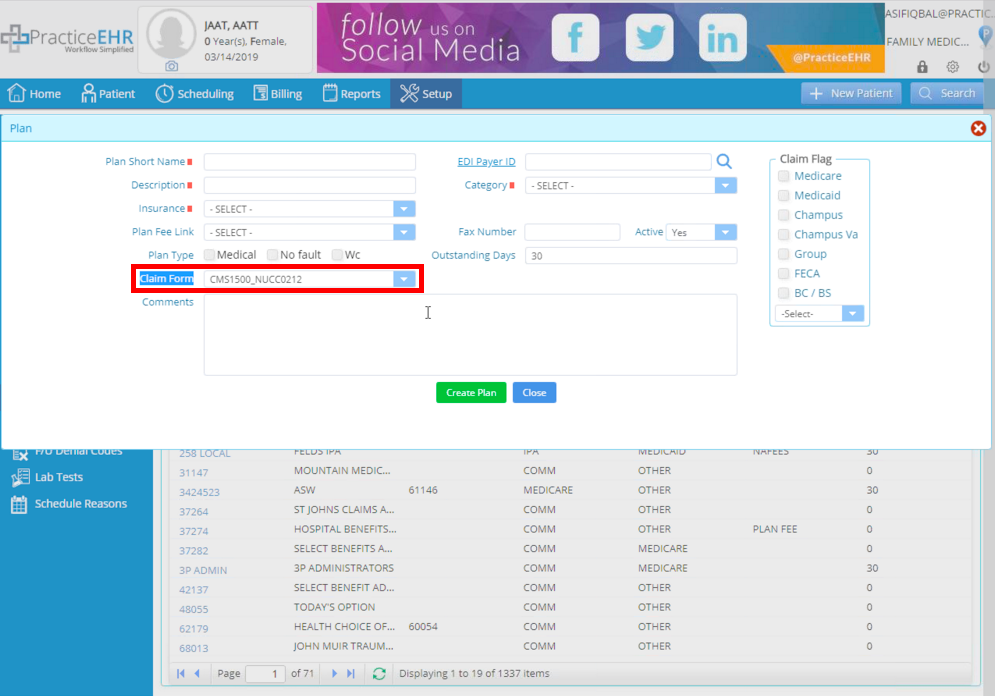
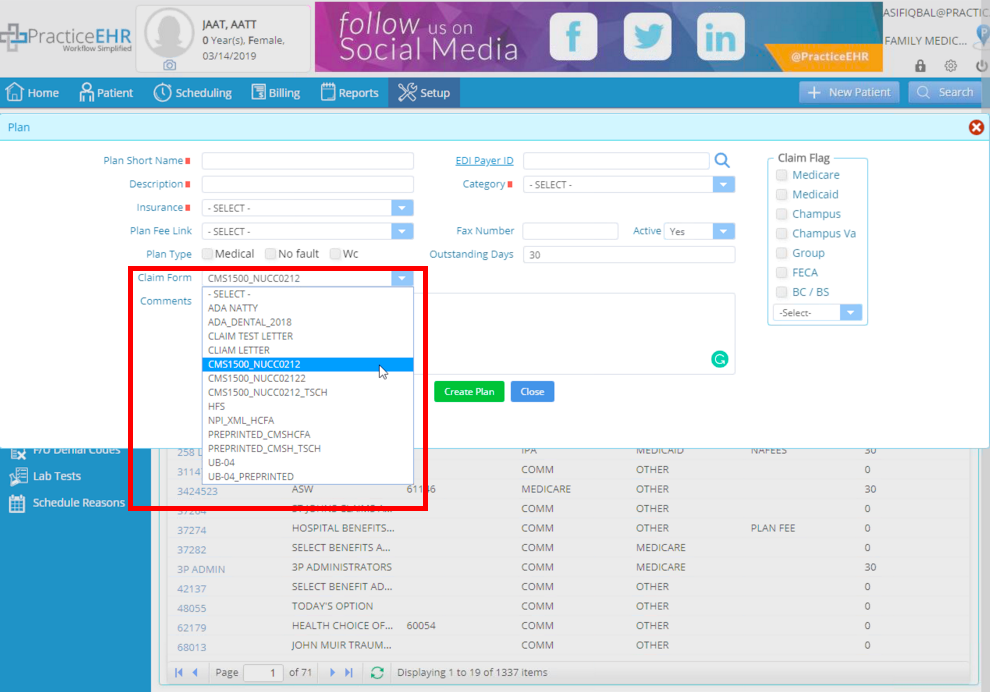
Claim form selection update. When creating a new plan, by default “CMS1500_NUCC0212” will be selected in the claim form dropdown because it is most commonly used. Other claim form options are available in the drop down. Go to Setup > Plan > Plan Detail to create a new plan and select the appropriate claim form from the dropdown.
15. Billing
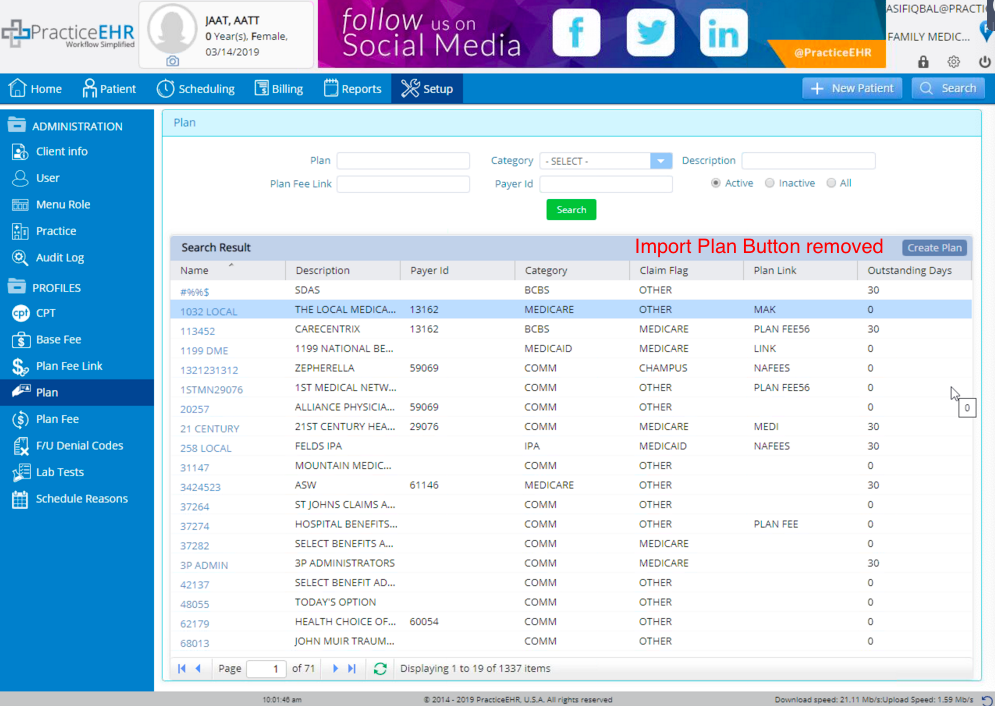
Import plan button removed. The import plan button was in the Setup tab under the Plan bucket, and is now removed. Users should add a plan by using the new EDI payer ID search feature, under insurance plan details (see #10).
16. Billing
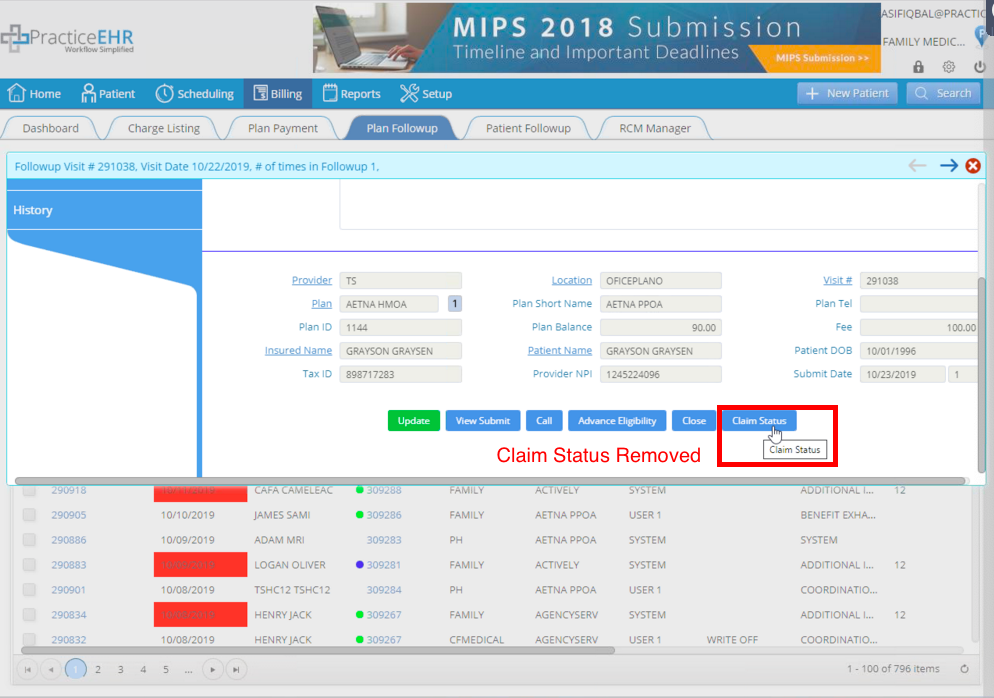
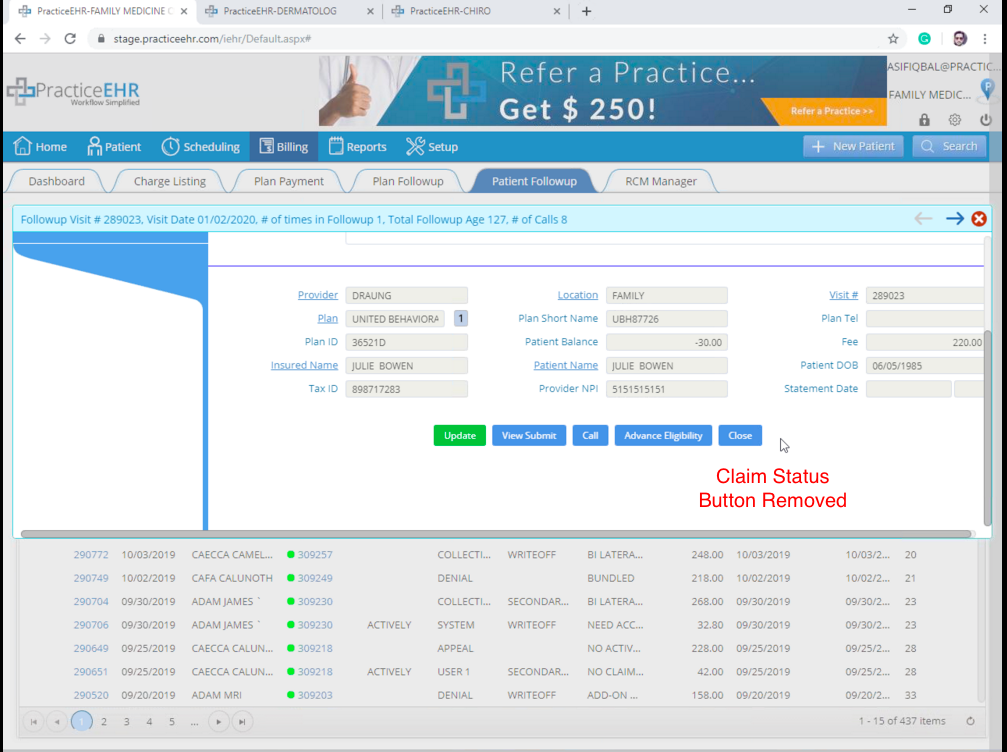
Claim status button removed. The claim status button was in the plan follow-up detail window, and is now removed.
Before:
After:
17. Billing
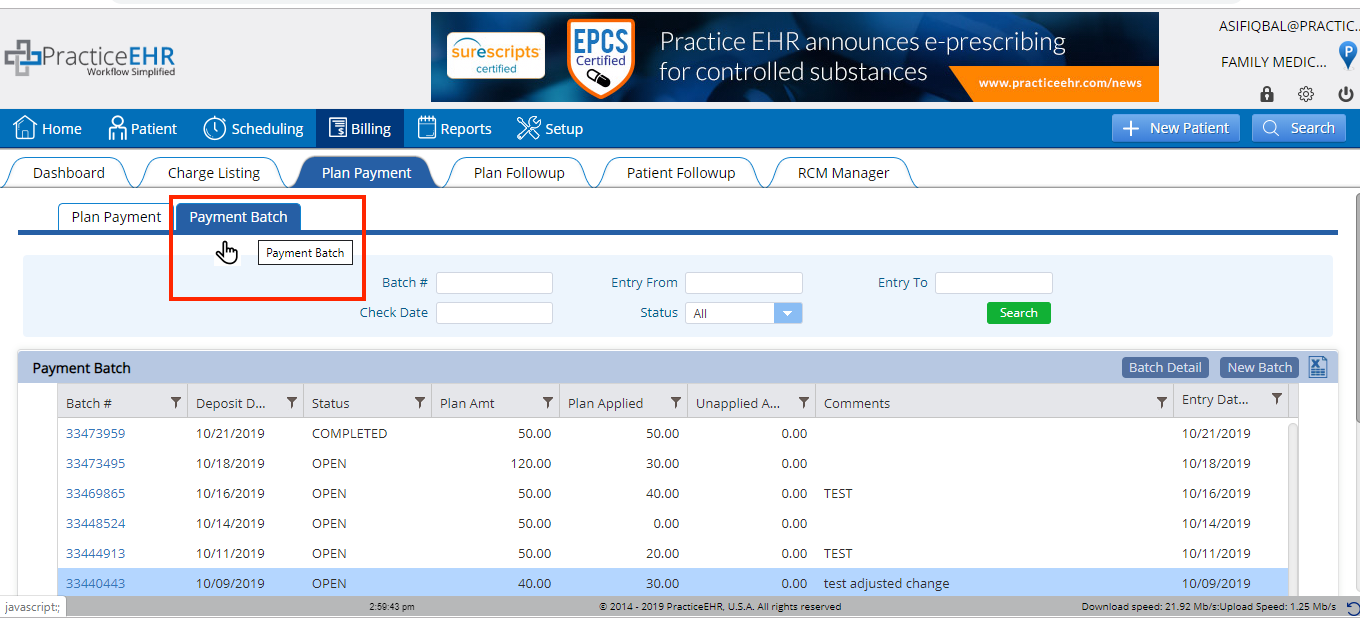
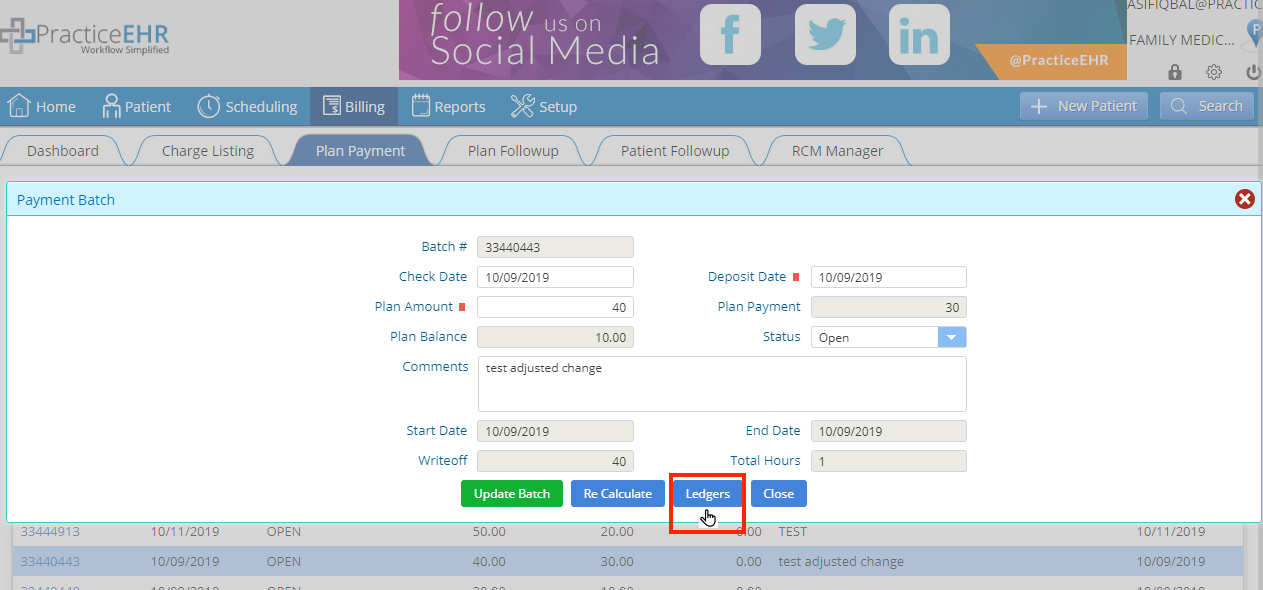
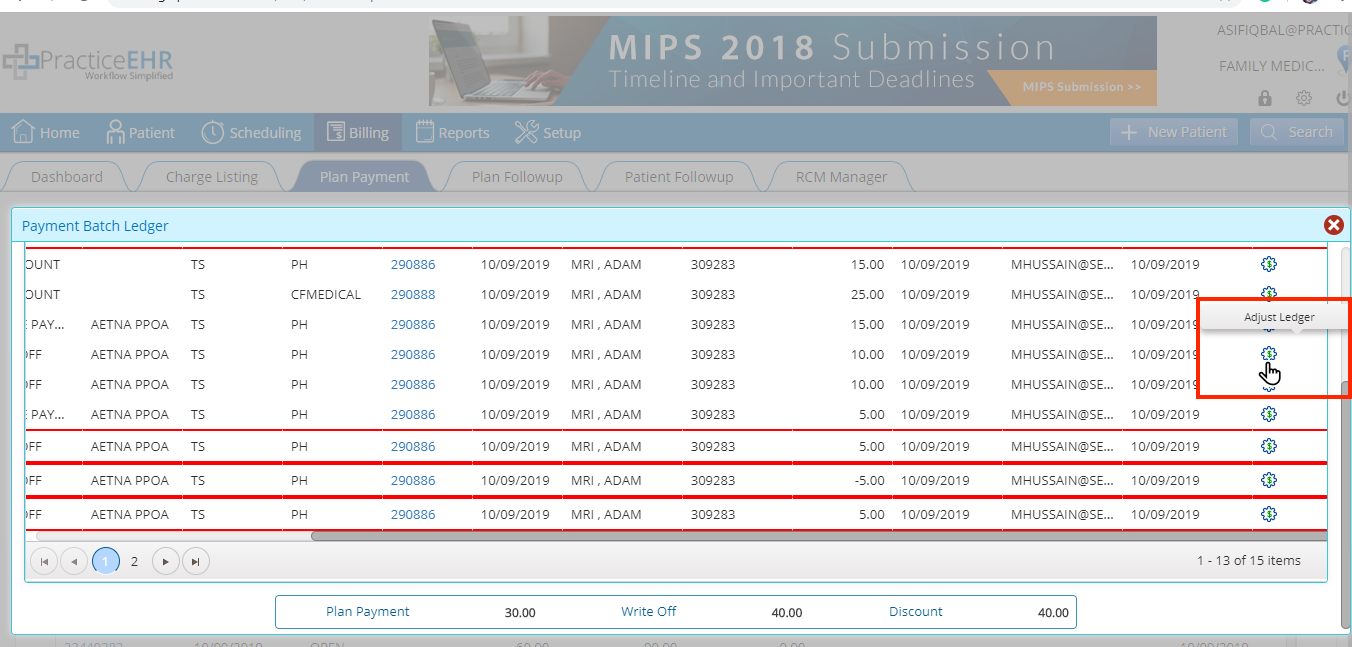
Adjust ledger option added. To adjust ledger, go to Plan Payment > Payment Batch Detail > Ledger > click adjust ledger icon, now available in the payment batch ledger window. This was made available so that our clients have more control of their ledger and can adjust it as needed.
18. Billing
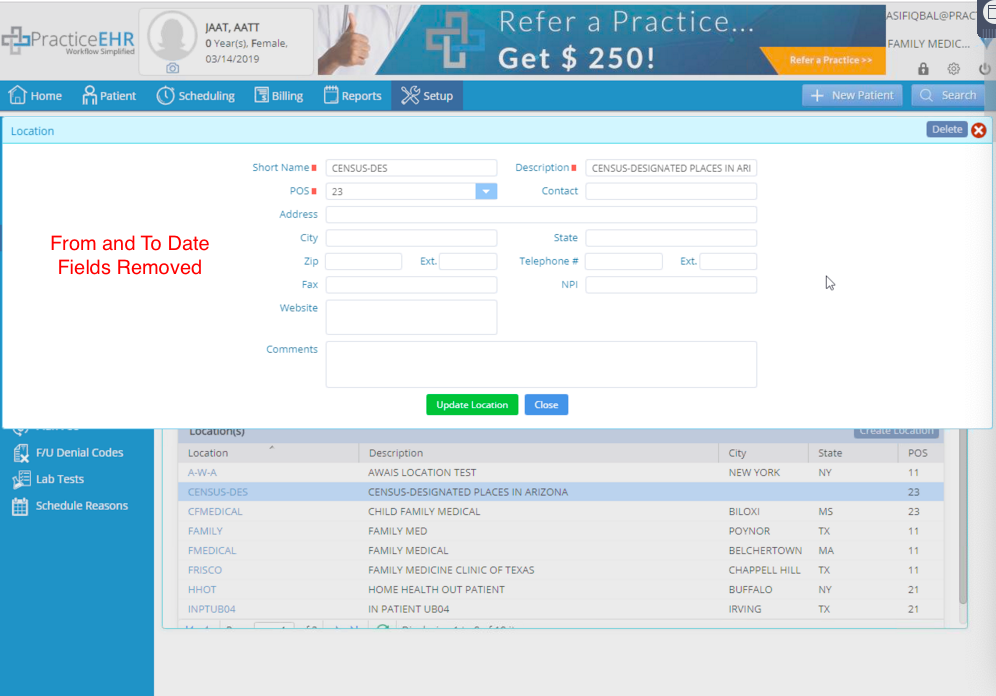
From and to date fields removed. The from and to date fields were in practice location details under the Setup tab, and are now removed. This change was made to simplify the user experience as the fields were irrelevant to most clients.
19. Billing
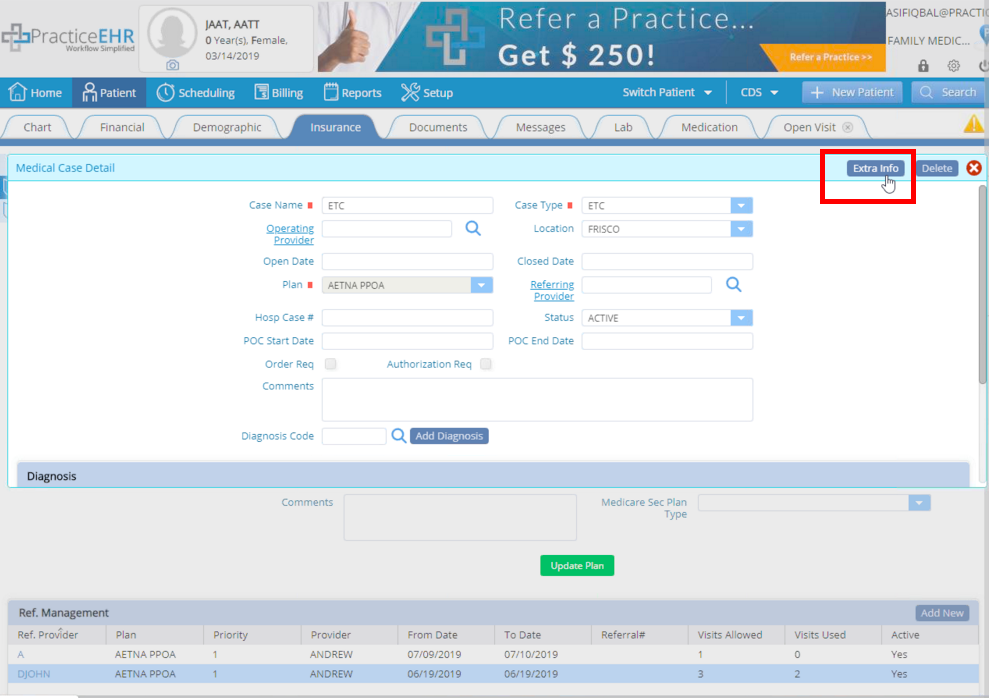
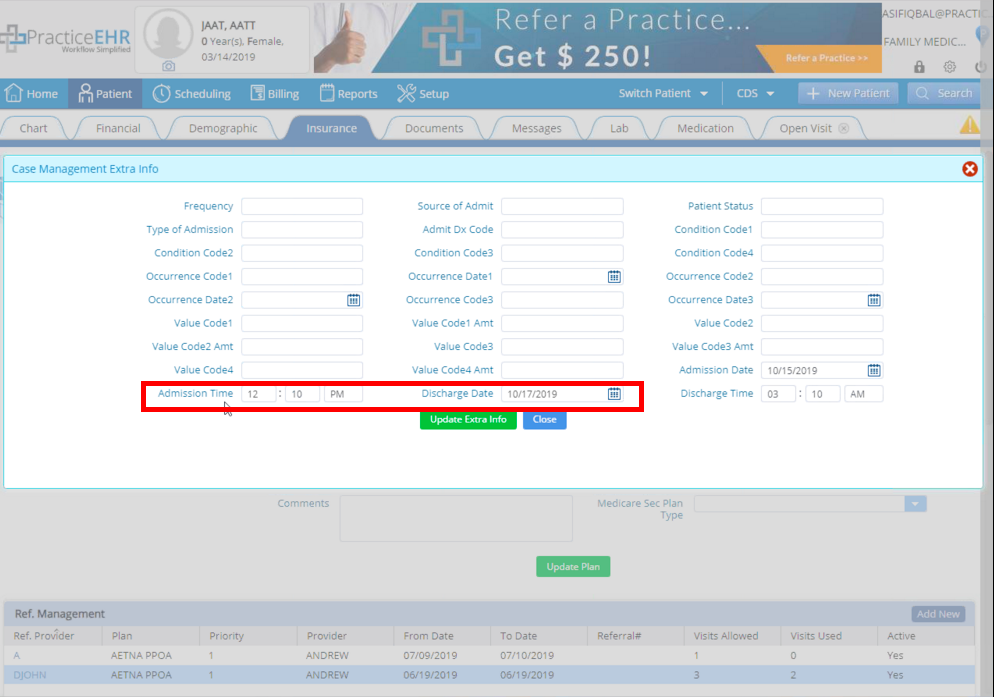
Admission and discharge details added. To add admission and discharge details such as date/time, go to Case Management > Case Detail > Click Extra Info > select admission and discharge details from the available dropdowns.
20. Billing
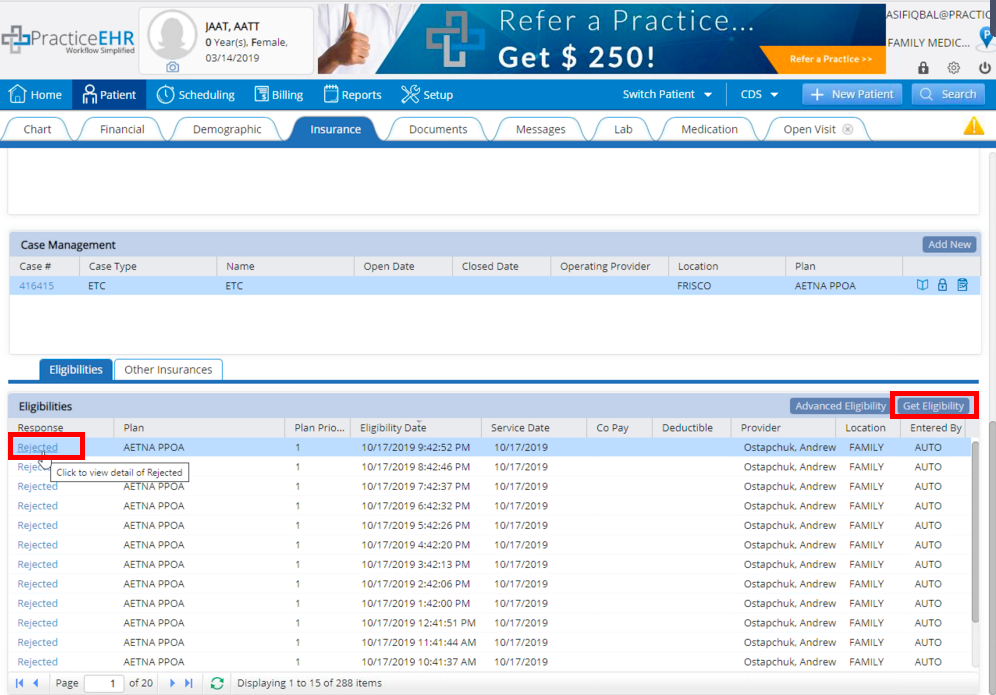
DOB field added to patient eligibility response. Go to Insurance > Get Eligibility> Add date of birth (DOB).